
Delivering emails, especially large numbers of similar ones like workshop reminders is very difficult. The Internet hosts many spammers who are continually upping their game and making it harder for email providers to distinguish genuine from explotative.
Some providers make it possible for you to indicate that you wish to receive emails from a set of domains even if that provider beleives the email might be SPAM. Other providers are known for dropping emails into the bit bucket on a whim, not even adding them to a SPAM folder.
The notes below will refer to adding domains to permitted lists. An Internet Domain Name is the bit after the @ in an email address. These are the domains which you should indicate should be delivered:
- rps.org
- digitalimaging.group
- talkwalktalk.org
- billetto.co.uk
BT Internet
To stop BT Group internet from marking specific emails as spam, add the sender to your "Safe Senders" list in settings, mark existing misclassified emails as "Not Spam" in the spam folder, and ensure the sender's email address is saved in your contacts. Regularly check the spam folder to train the filter.
- Add to Safe Senders List: Sign in to your BT Mail account on a desktop, go to Settings > Mail > Safe senders, and add the specific email address or domain. Use the list above and prepend an @ sign, e.g., @digitalimaging.group
- Mark as "Not Spam": Go to your Spam folder, select the wrongly marked email, and click the Not Spam button to train the filter.
- Add to Contacts: Adding the sender to your BT Mail address book helps indicate they are trusted.
- Check Blocked Senders: Ensure the email address has not been accidentally added to your Blocked senders list in Settings.
GMail
For Google's GMail we can use filters. Filters can be created using a button at the end of the search bar.

When you have clicked on the button which I've circled in blue you will see this dialog:
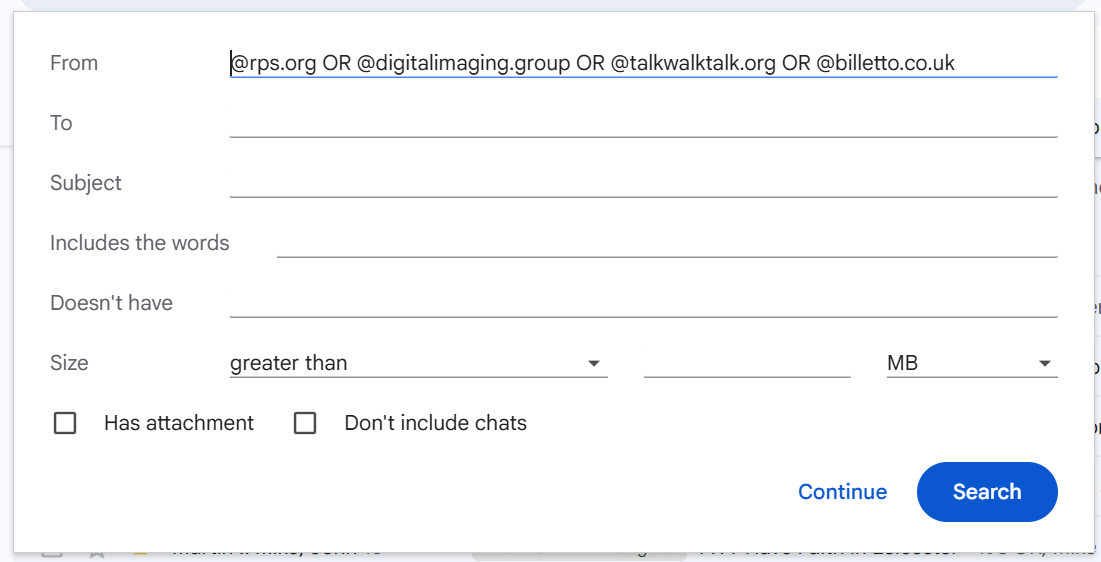
Enter @rps.org OR @digitalimaging.group OR @talkwalktalk.org OR @billetto.co.uk on the From line and press Continue (not Search).
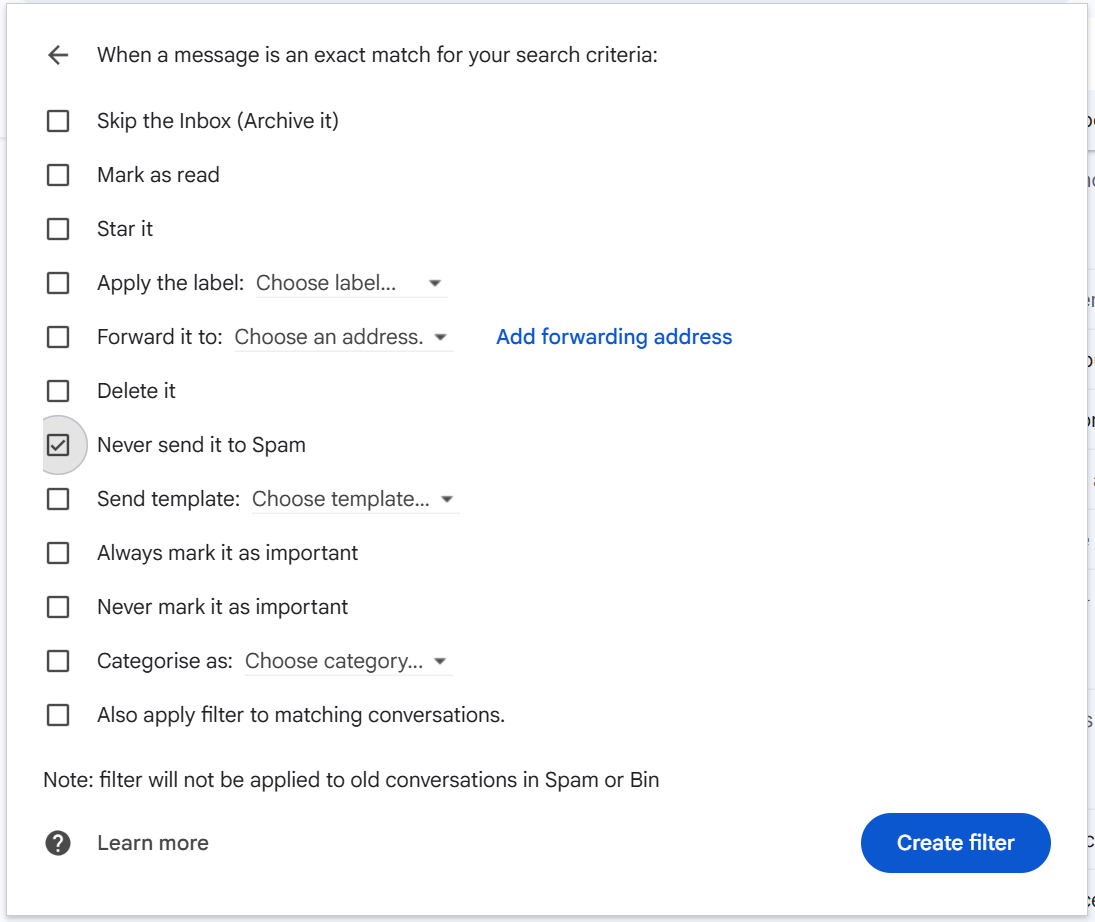
On the next page tick 'Never send it to Spam" and click on 'Create filter'. You could also apply a label here which will help you locate RPS emails later.
Outlook and Hotmail
To stop Outlook.com and Hotmail (which both use the same web interface) from sending emails from specific domains to your Junk folder, the most effective method is to add those domains to your Safe Senders and Domains list. Because Outlook’s aggressive automated filters run before any custom Rules you create, using the dedicated Safe Senders list is much more reliable than setting up an inbox rule.
Here is exactly how to do it using Outlook on the web:
Method 1: Add Domains to the Safe Senders List
- Open your browser, go to Outlook.com (or Hotmail.com), and sign in.
- Click the Settings gear icon in the top right-hand corner.
- In the left navigation pane, select Mail, then choose Junk email from the middle column.
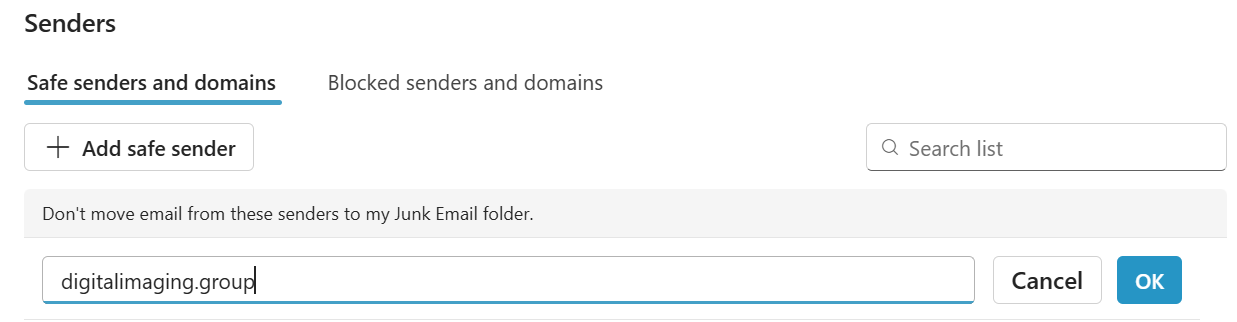
- Look for the Safe senders and domains section and click the + Add button.
- Type the domain name you want to allow (e.g., digitalimaging.group).
Tip: Do not include the @ symbol; just type the domain name itself. This will whitelist every email address coming from that domain. - Press Enter, then click the Save button at the bottom of the page.
Method 2: Train the Filter from the Junk Folder
If you already have legitimate emails sitting in your Junk folder from these domains, you can whitelist them directly from your inbox:
- Open your Junk Email folder.
- Select the message from the domain you want to trust.
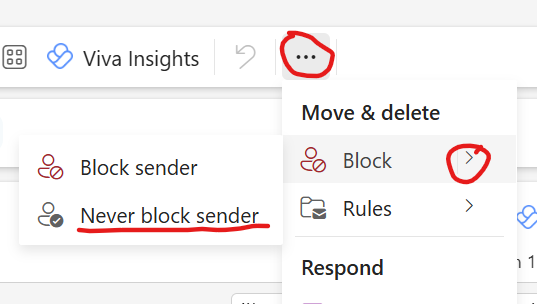
- From the top toolbar, click Not junk (or click the three dots ... and select Never block sender's domain).
- This instantly moves the message to your Inbox and tells Outlook's system to trust future emails from that specific domain.
Additional Tips for Stubborn Filters
If emails are still slipping through after trying the steps above, check these two settings on that same Junk email settings page:
- Trust email from my contacts: If you check this box, adding a specific sender to your Outlook People/Contacts list will automatically ensure their mail bypasses the spam folder.
- Check your Filters criteria: Scroll to the bottom of the Junk email settings page. Ensure the box next to "Only trust email from addresses in my Safe senders and domains list and Safe mailing lists" is unchecked. If this is turned on, Outlook becomes incredibly strict and will throw everything into junk unless it's explicitly whitelisted.
Other Providers
If you have any tips on how to allow these domains through for other email prividers please let us know in the comments below.
Comments